Keep the web in front.
The resting island keeps navigation and tab controls in a slim band above the page. Open its panel for more controls without shifting the page below.
Blanc Support
Find an answer. Get back to what you were doing.
browser controls, together
The resting island keeps navigation and tab controls in a slim band above the page. Open its panel for more controls without shifting the page below.
At rest, the island shows the tabs in your current group as dots, the site you are on, and a quiet shield. Click the shield to see the connection and change Blanc Blocker for that site.
Move toward the island and it rises and grows a little, settling before you click and easing back as you leave. It follows how close you are rather than switching on at a threshold, so there is no edge to feel—and it stays completely still while another app has focus.
The command bar grows out of the resting island—starting at its exact size and shape, corners rounding out as it expands—and shrinks back into it when you dismiss. If you have reduce motion turned on, both of these are off entirely.
Find tabs, Favorites, history and groups alongside search results. For search text, Enter opens the highlighted result. A strong match can come first; choose the search result showing your exact text when you want to search the web.
Open the island to switch tabs, navigate, favorite a page, start a private tab, or use the browser's commands—without moving the page underneath.
little everyday choices
The resting Island’s Plus opens one regular, ungrouped tab and focuses its address field. It sits beside the slash-command keycap. In vertical-tabs mode, use the rail’s New tab control instead.
On macOS, Settings offers Sunrise and Sunrise Dark. Both app-icon choices are free; no Patron subscription is required.
Try a list of Favorites, local frequent sites, or launch standalone Mahjong from any footer. Explore the four Start Page layouts.
jump, don't hunt
The Quick Switcher matches across open tabs, favorites, browsing history, and named groups. Choose a result to focus it without sorting through a tab strip.
Live provider suggestions appear alongside local matches when enabled. For search text, Enter opens the highlighted result. A strong match from your tabs, Favorites, history or groups can come first. Choose the search result showing your exact text to search the web. Provider suggestions can be turned off before first use or later in Settings.
Type / to see commands for everyday browser work, including
/private, /find, /group work, and /allow-ads.
The command palette floats over the page instead of moving content to make room. Dismiss it with Escape when you are done.
Use Recently Closed to pick a tab or group, or Named Workspaces to switch saved sets.
/favorites /bring-tabs /save [folder] /history /downloads /settings /sync /clear /new /private /close /reopen /pin /mute /sleep /group <name> /ungroup /close-group /find /block-ads /allow-ads /1password /theme [system|light|dark] /patron /workspace keep work in context
Use /group work to create or join a named group from the active
tab. A group exists only while it has tabs in it.
The resting island shows the active group's tabs. Group names and the rest of your groups live in the expanded panel, where you can choose what to return to.
Groups can tuck away in the panel, and the Quick Switcher finds them by name when it is time to return.
how it works
Choose View → Tab Layout → Vertical Tabs, or press Command or Control Alt V. The page you are reading stays exactly where it is — nothing reloads.
Every open tab becomes a row with its title, so a wide session stays readable instead of shrinking into dots. Drag the rail's edge to the width you want; Blanc remembers it on this device.
The rail is an overview, not a second interface. Searching, navigating, and commands stay on the island, so nothing you have learned about Blanc changes.
how it works
Settings, General, Quiet inactive tabs: off, 30 minutes, 1 hour, or 6 hours. It starts at an hour, and the choice stays on this device rather than following you to another one.
Type /sleep in the island and every eligible background tab
goes quiet immediately. It skips the waiting and nothing else, and it works
even with the delay switched off.
Opening a quiet tab reloads the page and brings back its address, its title, and its back button. Nothing disappears from your session while it is quiet.
left alone
A half-filled form, a ticked checkbox, a page that asks before you leave, or the result of something you submitted. Blanc checks every frame on the page, not just the top one.
Sound, video you have paused, muted tabs, pinned tabs, a window a page opened for a sign-in, and any tab waiting on a permission prompt.
A page you have scrolled a long way down is left as it is, because a reloaded feed cannot honestly put you back where you were.
undo a close
Press ⌘⇧T on macOS or Ctrl+Shift+T on Windows and Linux, type /reopen, or open the Island panel and choose an entry from Recently Closed.
Closing a named group records one undo entry. Reopen it to restore its ordinary tabs together, including its name, member order, and pins.
Reopening in one window uses that window’s list. Use Forget for one entry or Clear all to remove the list.
a short second chance
At most one eligible closed page per window can retain the same page for about 30 seconds. Reopening it during that time can preserve things such as scroll position and text you were typing without fetching the page again.
A still-recent entry falls back to a safe navigation snapshot or its URL. Page state is not guaranteed, and Blanc never silently resubmits a form. Loading, recording, quiet, and other ineligible pages do not receive the same-page recovery window.
Recently Closed holds up to 25 entries per window, and entries expire after one hour. It lives only in memory and ends when the app quits.
separate identities
Personal is permanent and keeps your existing Blanc data. In Settings, name another profile and choose Create profile window.
Named profiles isolate cookies, site data, Favorites, history, download metadata, and remembered permissions. Their ordinary and private sessions are separate from other profiles.
Each native window owns its tabs, groups, Island panel, and Recently Closed list. Saved windows return to their associated profile after relaunch.
what is shared
Appearance, network and privacy preferences, usage-measurement choices, and Patron status remain shared across the device.
Sync is available only to Personal. Creating a named profile does not create another synced identity.
Deleting a named profile requires its exact name. It closes that profile’s windows and removes its browsing data and saved workspaces. Files you downloaded remain on disk; Personal cannot be deleted.
your sets of tabs
Open the workspace control in the command panel or type /workspace. Active Patrons can save the current window or create a blank named workspace.
A bound workspace automatically saves its tabs and groups as you browse and returns after relaunch. Switching replaces the current window’s set; a workspace already open elsewhere brings that window forward.
Create groups and assign tabs yourself. Blanc saves those choices; it does not detect tasks or organize tabs by meaning.
part of Patron
Browsing essentials and ordinary tab groups are free. Blanc Patron is the optional subscription: US$30 per year or US$4 per month, plus applicable tax. It adds saved Named Workspaces. Creating a named workspace requires an active Patron subscription. Named Workspaces are available on macOS, Windows and Linux.
If membership lapses, existing workspaces remain openable, switchable, and automatically updated. Renaming and removing existing workspaces continue to work if it lapses. Earlier one-time supporters keep their lifetime Patron access.
Private tabs are excluded from saved workspaces. When a switch would discard private tabs or an unsaved window, Blanc asks you to make an explicit choice.
what syncs
Your favorites, search engine, blocking state and exceptions, home page, and theme, encrypted on your device before upload.
Off until you turn it on. Each machine publishes its own open tabs; nothing merges or rearranges.
History, downloads, permissions, cookies, site data, and private tabs stay on the device.
a menu, not a mirror
Sharing is a per-device switch in Settings, off by default. A machine’s tabs never leave it until you flip the switch on that machine — and flipping it off withdraws them.
Another device’s tabs are a read-only list. Picking one opens it as a fresh local tab; nothing force-opens, closes, or reorders on the other side.
Sync is available only to Personal. Named local profiles and independent windows let you separate browsing identities on this device.
Remote tabs sit behind a folded section in the island panel, match in the Quick Switcher below your local tabs, and appear on the start page under “on your other devices.”
four layouts
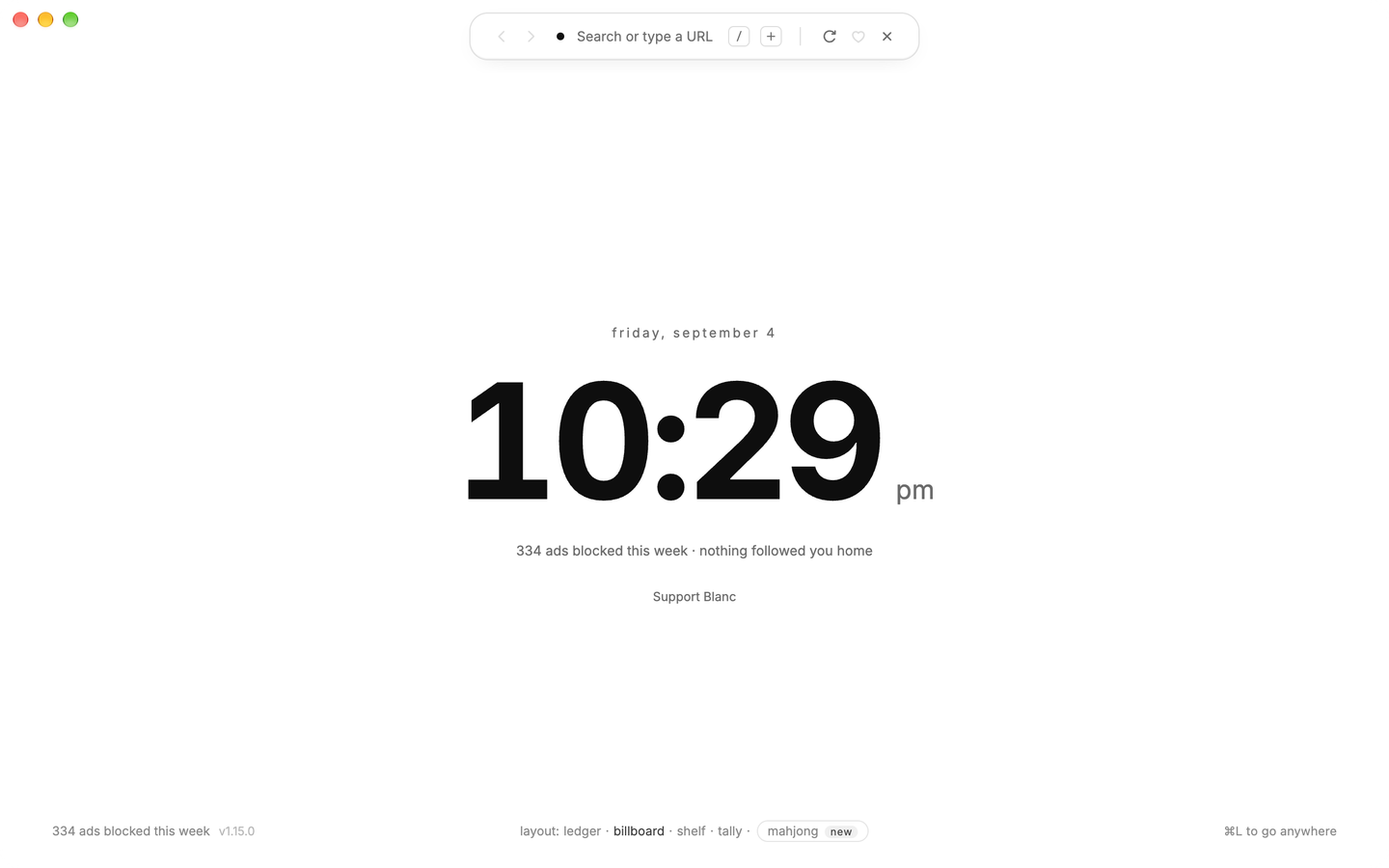
A large clock, your weekly blocked-request total, frequently visited sites, and your named groups. Billboard is the default; change layouts from the start-page footer or Settings → General.
A simple list of Favorites and named groups. When you opt into sharing tabs, Ledger also shows tabs from your other devices.
Favorites as tiles, with named groups and a weekly blocking total underneath.
Favorites and groups beside a day-by-day chart of blocked requests this week.
familiar places
Billboard ranks ordinary browsing history on this device. Its site icons come from locally cached artwork; drawing the row makes no new request to those sites or a favicon service.
Remove a site from Billboard when you do not want it there. That choice stays local and does not delete its history. Private tabs neither contribute to nor receive the history-derived row.
a little room to play
Open a standalone Mahjong solitaire table from any start-page footer. Your start page stays open while the game runs in its own managed tab.
Turtle, Arch, Peaks, Pyramid, Fortress, Butterfly, Bridge, and Cross are solvable by construction when dealt. The Daily deal rotates across all eight; your choices during play can still leave you needing a hint, Undo, or Shuffle.
Choose Classic or Burst, with scoring, timed combos and automatic clears in Burst. Hints, sound controls, Undo, and Shuffle are built in. Shuffle itself can be undone, including after a Burst rescue.
The Records sheet keeps boards cleared, best Classic times and Burst scores, and current and longest Daily streaks on this device.
Blanc remembers your last board, mode, and deal choice. A new Mahjong tab can offer to continue an unfinished game from another tab.
choose your reference
Press ⌘⇧G on macOS or Ctrl+Shift+G on Windows and Linux, or choose View → Open Glance. Pick a tab from the current window; the picker stays within its local profile.
Drag the divider or resize it with the keyboard. Wide windows put the pages side by side; narrow windows stack the reference below the main page.
Use Change to choose another reference, Make main to swap the two pages, or Close to dismiss Glance without closing either tab.
stay with the page
Selecting a quiet tab for Glance reloads it. While it remains visible as your reference, Quiet Tabs leaves it alone.
The picker uses tabs from this window and profile. It does not search history, Favorites, remote tabs, or another window.
start anywhere
Hold the right mouse button, draw the gesture over the active page, then release. A normal right-click without a drag still opens the page’s usual menu.
Hold Alt on Windows or Option on macOS, click and hold with one finger, then drag and release. A click without the drag stays an ordinary click.
Blanc waits for release before acting. Unassigned gestures and drawings with more than three directions do nothing.
make it yours
Left goes Back, right goes Forward, up opens a New tab, and down closes the current tab. Restore defaults brings these four motions back at any time.
In Settings → General, choose Add gesture and draw up to three directions. Pick its action, save it, and it is ready on the active page.
Assign Back, Forward, Reload, New tab, Close tab, Reopen closed tab, Previous tab, Next tab, or Open Island. Existing gestures can be reassigned or removed.
a one-time setup
Install the 1Password desktop app and sign in. Open Settings → Developer. Under Integrate with the 1Password SDKs, enable Integrate with other apps.
Open Settings → Privacy & Security → 1Password. Turn on Fill logins from 1Password, enter the email address you use to sign in to 1Password or your account ID, and choose Verify. Approve Blanc Browser when 1Password asks.
On a website login form, press ⌥⌘P (Option + Command + P), or
choose View → Fill Login from 1Password. If several Login items match the
site, choose the one you want. You can also run /1password from
the Island.
you choose when
Once configured, the Island can show a key hint on a page with a visible current-password field. Choose it to start the same login-fill flow.
Blanc never fills automatically or saves the returned credentials. The setting and account identifier stay on this device and are excluded from Sync. Read how login fill handles data.
The integration is currently available on macOS only. Windows and Linux builds do not offer 1Password login fill. It fills matching Login items; it does not provide password saving, payment-card filling, or 1Password passkeys.
Blanc uses Chromium to render websites and Electron to package that engine with a desktop runtime. Blanc supplies the floating island, tab management, settings and network-layer blocker. It uses official, unmodified Electron releases.
This lets one small team maintain an app for macOS, Windows and Linux. The trade-off is a bundled runtime and a multi-process memory footprint; it is not a separate web engine or a native system-webview browser.
Installed builds check the official GitHub release channel. A new Blanc release replaces the whole app and carries its selected Electron and Chromium builds. Applying an update requires restarting Blanc; Chromium does not update independently inside an older app.
Linux builds are AppImages. Make the file executable and keep it in a location you can write to for in-app replacement. AppImage requirements vary by distribution. If automatic updating is unavailable, download the current official AppImage and replace the old file.
Blanc connects to the websites you visit, GitHub for app updates, and your selected search and DNS providers. A search sends the completed query to your search provider. If Google is selected, Google receives it; enabled search suggestions can also send eligible typed prefixes. Private tabs exclude suggestion requests.
Help improve Blanc sends pseudonymous events to a Blanc-owned Cloudflare collector: a launch event plus bounded, once-per-app-session counts for the first real Mahjong move and each start-page layout that renders. Layout events add one fixed layout name. Events contain random install and session IDs, app version, platform, architecture, coarse OS major and fixed feature names; they contain no URLs, searches, history, page contents or game state. The collector replaces the install ID with a keyed hash. If its optional Google Analytics mirror is configured, Google receives that hash and the same limited event fields.
Both optional choices are presented on in fresh first-run setup. Sending starts only after you save the choices, and existing saved choices are retained. You can turn either off in Settings. Optional Sync, Patron, 1Password and tab handoff make their own connections when configured or requested.
This website has separate controls: optional Google analytics and ad attribution remain off until you allow them through footer Privacy choices, or an existing saved grant applies. Cloudflare’s cookieless page counts and aggregate download counts remain enabled.
Yes. The MIT License covers Bananify Creative-owned software, documentation and media. You can inspect, modify, redistribute and build that material. Blanc and Bananify names, logos and reserved identity assets have separate terms; MIT does not grant trademark rights. Third-party material retains its own terms, including the bundled EasyList and EasyPrivacy lists.
Published macOS releases are signed and notarized; Windows releases carry a timestamped Authenticode signature. A Sigstore-authenticated checksum manifest helps authenticate release artifacts. Windows and Linux CI artifacts carry GitHub provenance attestations. A local build does not prove that a published binary matches its source byte for byte; those records do not make local builds reproducible.
Memory use depends on the pages, number of tabs, background activity and operating system. Electron uses multiple processes, so a single process’s memory figure does not describe the whole browser. Quiet Tabs can reclaim inactive-tab renderers and rebuild them when needed.
Blanc’s published benchmark is dated measurements from August 9, 2026 on macOS 27, arm64 and 8 GiB RAM, using its published harness and raw runs. It measures phys_footprint across each browser’s process tree, rather than summing RSS, which can count shared engine memory repeatedly.
Brave is a useful comparison because it also blocks by default. That run also included Blanc with blocking disabled. These results describe those browser versions and workloads on that machine; they are not Windows or Linux results, a current-release benchmark, or a promise that Blanc will always use less memory.
Browsing essentials and ordinary tab groups are free. Blanc Patron is the optional subscription: US$30 per year or US$4 per month, plus applicable tax. It adds saved Named Workspaces. Creating a named workspace requires an active Patron subscription. If membership lapses, existing workspaces remain openable, switchable, and automatically updated. Renaming and removing existing workspaces continue to work if it lapses. Earlier one-time supporters keep their lifetime Patron access.
Blocking, private tabs, favorites, ordinary tab groups, Quiet Tabs and optional encrypted Sync remain free. Patron does not restrict access to the open-source code.
Yes, on macOS. Blanc includes an optional integration that fills matching Login items from your installed 1Password desktop app and account when you ask. It is off by default. Windows and Linux do not currently offer this integration.
In 1Password Settings → Developer, enable Integrate with other apps under Integrate with the 1Password SDKs. In Blanc, open Settings → Privacy & Security → 1Password, enable Fill logins from 1Password, enter your sign-in email or account ID, and choose Verify. On a login form, press ⌥⌘P (Option + Command + P), or choose View → Fill Login from 1Password. You can also run /1password from the Island.
Blanc does not offer a general third-party extension runtime. Ad and tracker blocking is built into the network layer. On macOS, the optional 1Password integration is a narrow, user-invoked bridge to the installed 1Password app, not an extension runtime or a Blanc password store.
No. Blanc does not proxy or anonymize traffic. You can use it with a system VPN. Secure DNS controls how names are resolved; it does not hide website requests or replace a VPN. Private tabs keep certain browsing records out of the local profile, but websites and your network can still observe connections.
AI assists implementation and security review. Anthony J. Loria remains accountable for product decisions and release approval. AI-assisted checks and maintainer review do not constitute an independent security audit.
No independent external security audit has been completed. Public source, maintainer reviews, automated tests and authenticated release artifacts provide specific evidence; they do not substitute for an independent audit. The next step is preparing a scope and funding proposal, without promising a date.
Blanc has no built-in AI assistant or page summarizer. Named Groups and Named Workspaces are user-directed; Blanc does not infer tasks or organize tabs by meaning. You can visit AI websites as you can other websites.
Blanc offers four start-page layouts: Ledger, Billboard, Shelf, and Tally. Billboard derives frequent sites from ordinary local history. Ranking, cached site artwork, and hidden-tile choices stay on the device; private tabs neither contribute to nor receive this row.
Every start-page footer opens Mahjong in a standalone managed tab. Its eight boards include rotating Daily deals, records, streaks, and unfinished-game continuation across tabs. Game state and records stay on this device and are not cloud-synced. Your choice among the four start-page layouts can sync through Personal’s optional Sync.
If you enable usage measurement, Blanc can count fixed layout names and the first real Mahjong move once per app session, without browsing data or game state. Private-tab feature activity is excluded.
Yes. First-run setup can look for installed browsers. You can also open Favorites, choose Look for other browsers, select a detected profile, and use Import from browser. Import HTML… accepts an exported bookmarks file.
Imports happen on this device. This imports bookmarks into Favorites; it does not import passwords, cookies, or every part of another browser’s session. Favorites may later sync if you separately enable Personal’s Sync.
Bananify, an independent software studio. Source code, official releases and security reporting are linked from How Blanc works.
No matching answers. Try a different word, or get in touch below.
